
Docs · Projects
Views
A View is a virtual read-only table which is created by a query, which can include columns from one or more tables in a datastore. This is very useful for scenarios where you are using a common query to display a subset of data on a page of your App or you need to create a single table which encapsulates data from multiple tables so you can query it. The rows in a View will automatically update whenever the original data that the View is created from updates so you never have to worry about data in your View going stale.
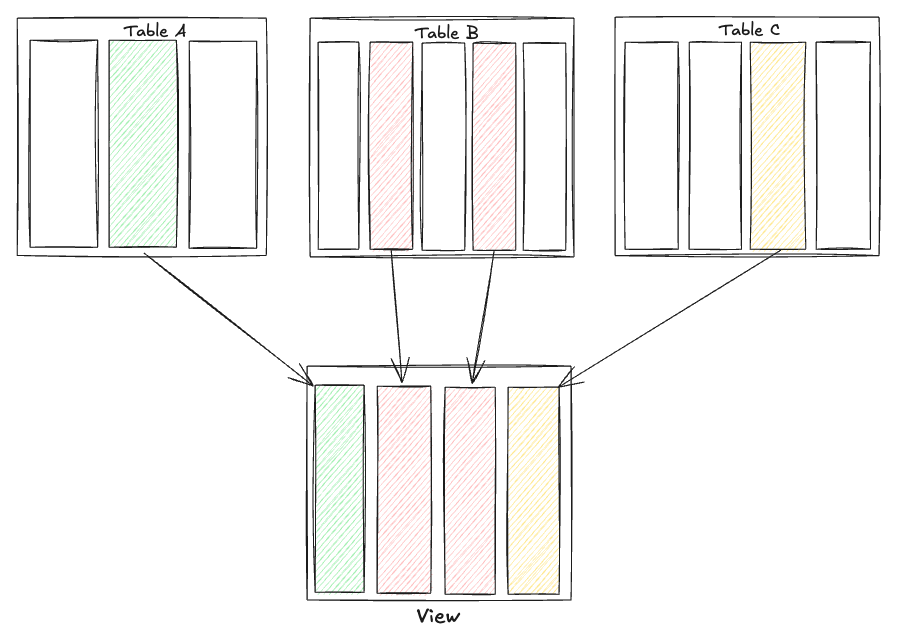
Features of a View
Every View starts from a base table, this is the table that forms the foundation of your View. Once you have selected this base table, you can bring in data from other tables and define queries to define how your View looks.
Joins
If you would like to include columns from another table within your View, then you need to join that table (the right table) to the base table that forms your View (the left table). A Join is a way of specifying the criteria of how to merge the external table and your base table, and the critirea looks a bit like a query. Imagine you have a table of Films which includes the Title, Description, Year of Release and Director and you have a Directors table which includes Name, Date of Birth and Nationality. If you want a single View that displays the Film Title, Director Name, Director Date of Birth and Director Nationality then your join criteria would be join where the Director in the Films table is the same as the Name in the Directors table, or in other words:
JOIN Directors ON Films.Director = Directors.NameBut what would happen if the Films table contained a Director that didn't exist in your Directors table? Well, fortunately you can specify what type of join you wish to perform.
There are three types of Join that you can perform in a View, an (inner) join, a left join and a right join. Let's take a look at how each of these types of join behave.
Inner Join
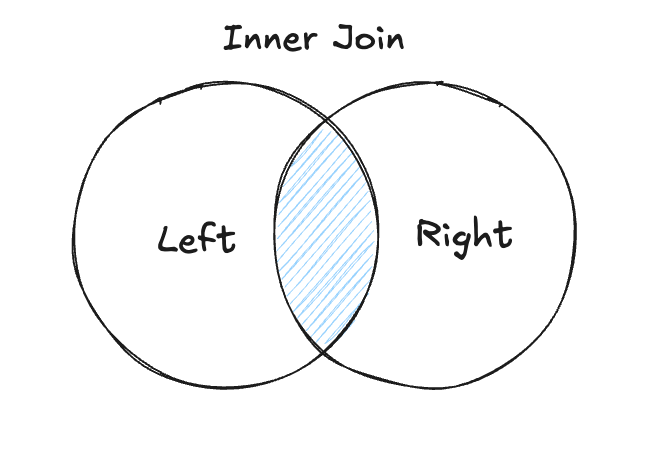
An inner join will only include the rows from both table where the data exists in both the base table (the left table) and the external table (right table). In our example above, this means that it will only include rows of data in our View where the Director exists in both the Films table and the Directors table. An inner join can be visualised as the following:
Left Join
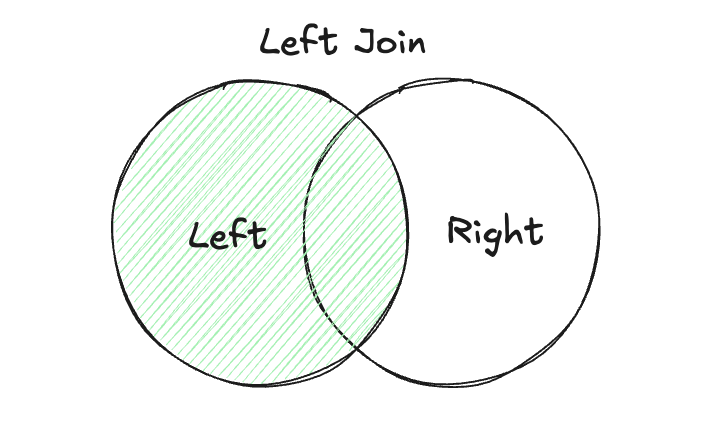
A Left Join will include all rows in your left table (base table) and where it can it will also include the rows that match the criteria from the right table (external table). In our example, this will include all the rows from the Films table, but only populate the Director information if that Director existed in the Directors table. A Left join can be visualised as the following:
Right Join
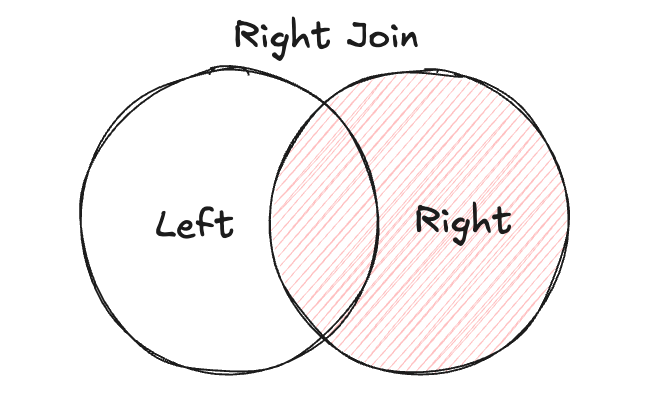
A Right Join is the opposite of a Left Join, it will include all rows from the right table (external table) and only include data from the left table (base table) if it met the join criteria. A right join would behave very similarly to an inner join in our example of Films and Directors but it would also include all the Director information even if there weren't any corresponding Films. A right join can be visualised as the following:
Queries
You would normally use a View because you want to frequently reference a subset of data from one or more tables and a Query is how we would define what that subset contains. Imagine, for example, you have a table of films which includes the name, description, director, genre and year of release. You might want to create a View for each genre so you would construct a View with a query such as:
WHERE genre = "Action"
OR genre = "Adventure"
This would create a View which would display Action and Adventure films.
You can query any of the columns from any of the tables you are using in your View, including tables in joins.
Function Support
You can now use SQL functions within views to transform, format, and compute new data columns.
- Perform inline transformations (e.g.,
LOWER(),DATE_TRUNC(),ROUND()). - Create derived columns directly in views.
- Reduce the need for post-query manipulation in automation or apps.
GROUP BY Support
Views now support the GROUP BY clause, allowing aggregation directly in your view definitions.
- Pre-aggregate metrics at the view level.
- Simplify complex reporting queries.
HAVING Clause Support
In addition to GROUP BY, you can filter grouped results using the HAVING clause.
- Filter aggregates (e.g., filter users with more than 5 orders).
- Keep logic concise by combining aggregation and filtering in one view.
Use Cases
| Feature | Use Case Example |
|---|---|
| Functions | Normalise emails, format dates, calculate ratios |
| GROUP BY | Aggregate metrics by user, product, region |
| HAVING | Filter for top customers, frequent users |
Aliases
Whilst Joins are great for displaying related data it can lead to duplicate column names as you might be adding a Created date column from your base table and a Created date from your external table. This could lead to some serious confusion as you then end up with a View which has two columns named the same! That's where Aliases come in. An alias allows you to give each column in your View a unique name so you can avoid this confusion.
Where you can use a View
Since a View is a read-only Table, you can use a View anywhere that you read Table data and it will behave exactly the same as a Table. This includes but is not limited to:
- Automation Actions
- Get Table Data
- For Each Row
- Get Table Information
- Table to XLSX/CSV
- Table to List
- Data Processor
- App Pages
- Dynamic Page Datasource
- App Components
- Repeating Layout
- Dynamic Data Wrapper
- Select Field
- Table Component
- Chart and Apex Chart components
- IPL Actions
- Get Table Data with Query
- Get Table Information
- Get Datastore Value
Limitations of a View
Whilst a View is very similar to a Table, the main difference is that a View is read only. This means that you cannot add a row to a view or update a row in a view. If you want to update the contents of a View, you either have to update the contents from the tables that the view is made up of, or you need to update the query that was used to build the View.
Additionally, as a View is quite involved to create, you cannot currently create or update a View from an action as you might a regular Table. You can only create or update a View from the Datastore.
Thirdly, a View can only access Tables within the same Datastore it is created in, so bear that in mind when it comes to structuring your Datastores.
Lastly, you cannot create a local View in an Activity, a View can only exist as a Datstore variable. This is because behind the scenes it is actually stored as an SQL View) and there is no way to store a View locally to an Activity.