
Docs · Administration
App Gateways
An App Gateway represents a server for you to deploy your Apps to, where they will be served and hosted from. A Toca platform will always come with a Default App Gateway, this is built into the platform so your Apps will be deployed and hosted from the same server as the rest of the platform but this allows you to define other deploy targets.
An App Gateway is useful when you want to serve and host your App(s) from somewhere other than the default location. One App Gateway can have many apps deployed to it and you can put your App Gateway wherever you want provided it can communicate to the core server via HTTPS.
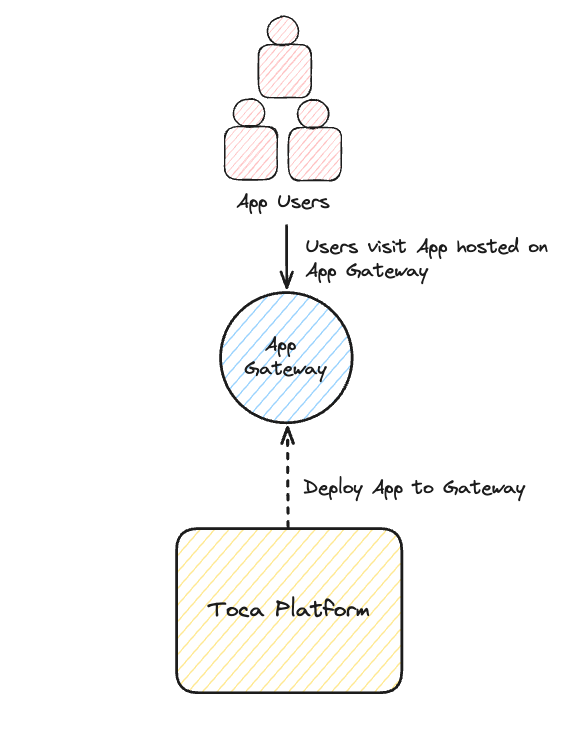
This is useful for a number of reasons:
- You can host your App on a custom URL (e.g. <https://myapp.mycompany.com>;), you just need to make sure the DNS A record for this URL is configured to point to the IP address of the App Gateway server. When you deploy an App on the Default App Gateway it will always be hosted on <https://apps.{platform URL}/app-slug>
- You can move your App network traffic to a separate server, therefore reducing the load on the main platform
- You can independently scale your App Gateway server to adapt to increases and decreases in traffic
- You can have the main platform located behind a firewall but can make an App Gateway public facing so your Apps can be accessed publicly without compromising the security of your main platform
- You can deploy different versions of the App to the Gateway and Default gateway so you can deploy the draft version on the default gateway for testing and you can deploy your published version of the App to your App Gateway for your app users.
- You can set up two App Gateways and deploy your App(s) to both of them and use a load balancer to set up a "Blue-green deployment" - you can find out more about this here.
SSL provisioning and renewal will be handled internally by an App Gateway so you do not need to worry about configuring SSL certificates. However, if you wish to use a private SSL certificate provider please raise a ticket via <support@toca.io>.
Configuration
Prerequisites
Before you can link an App Gateway with your platform you must do the following:
- Configure and stand up a server to install the App Gateway onto
- Configure a DNS A record for the App Gateway which points to the IP address of the server it will be installed on
- An example might be <https://external-gateway.{platform-url}>;
Installation
When an App Gateway is installed you will get get an App Gateway API Token and an App Gateway JWT Secret. These are very important as these are what allows the App Gateway to securely communicate with the main platform. These can be provided on request when a new App Gateway is installed.
Linking to the Toca Platform
Once an App Gateway is installed then to link it to the main platform you will require the following details:
- A Name - This should be a descriptive name that represents the use for this particular App Gateway (e.g. Live Gateway or Staging Gateway)
- App Gateway URL - This is the admin URL which was set up in the prerequisite steps
- App Gateway IP - The IP address of the server the App Gateway was installed on
- App Gateway Port - This should always be
2020 - App Gateway JWT Secret - This can be requested from the party responsible for installing your App Gateway
- App Gateway API Token - This can be requested from the party responsible for installing your App Gateway
Once you have entered all this information, the new App Gateway will be available as a new Deployment Target inside any App on the platform. Don't forget that if you wish to deploy an App onto a custom URL on the App Gateway then you must set up that DNS A record to point to the App Gateway server first.