
Docs · Projects
In Page Logic (IPL)
In page logic allows you to trigger actions within your App based on an interaction such as clicking on a button or typing in a text field. This allows you to make your apps more interactive and reactive to the user. The actions available cover a wide array of functionality such as making API calls, interacting with other entities in the Toca platform and updating elements on the current page.
Some common use cases of this are as follows:
- When a user first loads a page, trigger a flow to fetch data from an external API, process the response and set the content of a component on the page to the response (e.g. fetch live weather data and display it on the page)
- Hide or show parts of your page based on data that the user has submitted (e.g. show different input fields in a form if user selects type of company as PLC vs Limited)
- Change properties of components on the page based on users selection of filters (e.g. display a chart alongside different filter options, once any of the filter options change, redraw the chart to reflect changes)
You can design an IPL flow on any component on a page as well as the page itself, the component/page you design the flow on depends on what event you want the flow to be triggered by, an Event represents something happening on the page such as:
- "On Click" - A component being clicked on
- "On Mount" - A component first being loaded onto the page
- "On Unmount" - A component being removed from the page
- "On Change" - Something about the current component being modified such as text being entered into it or an item in a Select field being selected
You can then define the flow of logic from the Event and can drag actions onto your Event Designer and then link them together in the order you wish them to run. This is similar to how you design workflows.
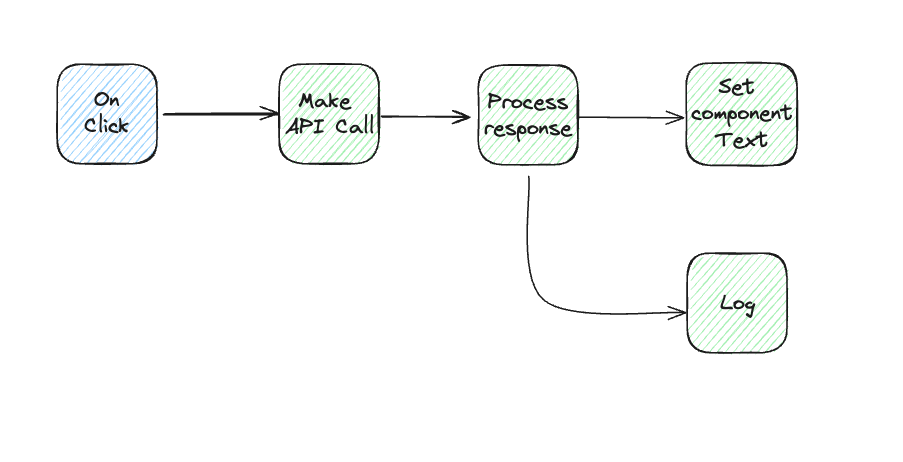
IPL also has an Exclusive node, similar to the one found in automation Workflows, which allows you to branch your IPL flow off based on conditions.
However, unlike automation workflows, IPL flows can branch off in parallel to allow for parallel execution, you can achieve this by just dragging multiple paths from one node in the IPL flow to two or more others. Do be aware though that once you do this, you cannot join several paths back into one.
Each action in IPL can return a result, these results can then be used in the IPL flow but cannot be used outside of the IPL flow you are currently designing. If you wish for a value to be available outside of the IPL flow then you should use In Page Values.
In Page Values (IPV)
In Page Values are like variables for your App, they are stored in the memory of your browser that you have the App open in and can have different lifetimes based on what you select. These In Page Values are available both within IPL actions as inputs but they are also available as a datasource for any App Component property that allows you to select a datachip.
Behind the scenes, these In Page Values are stored in IndexedDB, an in-browser database that can actually be viewed by opening the browser dev tools, heading to the Application tab and locating the IndexedDB section. There will be a database under this section labelled IndexDB and this is the one which IPV's from Toca Apps are stored.
When you set each In Page Value, you get a choice about how long you would like the IPV value to last and there are three different options:
- Persistent - This will live in your browser forever or until you clear your browser cache, this will likely outlive the browser tab that contains the App but this fact should not be relied on in your design
- Session - The value will live until the user closes the browser tab, the "session" here is the lifetime of the browser tab
- Temporary - The value will be destroyed once you navigate away from the page the value was set on