
Docs · Guide
Querying Data
The ability to query table data to bring back exactly the rows you want is very powerful. It allows you to do things like return only the rows where the value is greater than {x}, or only return the data where the title is equal to "Mr". You can query tables and views using a powerful query editor that allows you to combine queries so that you can return only the data you are interested in.
Imagine you have a table that looks something like the following:
| Id | Product | Category | Amount (GBP) | Associated User |
|---|---|---|---|---|
| 987 | Engima Cracking Kit | Electronics | 99.99 | 1 |
| 988 | Turing Machine Parts | Electronics | 25.50 | 1 |
| 546 | Guide to the Internet | Books | 74.99 | 2 |
| 547 | How to build your first website | Books | 24.99 | 2 |
| 548 | Server for website | Computing Hardware | 24.99 | 2 |
| 321 | Guide to Microsoft Windows | Books | 0.99 | 3 |
| 322 | Guide to MacOS | Books | 1.99 | 3 |
| 322 | How to build an Operating System | Books | 5.99 | 3 |
If we wanted to find all products that were below £5, we would then write a Query that would represent the following:
FETCH ALL Data WHERE Amount (GBP) < 5.00 which would return the following data:
| Id | Product | Category | Amount (GBP) | Associated User |
|---|---|---|---|---|
| 321 | Guide to Microsoft Windows | Books | 0.99 | 3 |
| 322 | Guide to MacOS | Books | 1.99 | 3 |
Let's take a deeper look into how we would do this.
Creating a Query
Where you can use a query
There are five main places you can use a query to filter the data you return:
- Actions in Activities
- Datastore Interface
- Dynamic Pages in Apps
- App Components
- App IPL Actions
All of these places share the same Query interface and give you the same options for filtering a Table or View. The Query interface gives you an option of the Field which defines where you are filtering, the Operator which represents how you are filtering and a Value which represents what you are filtering by.
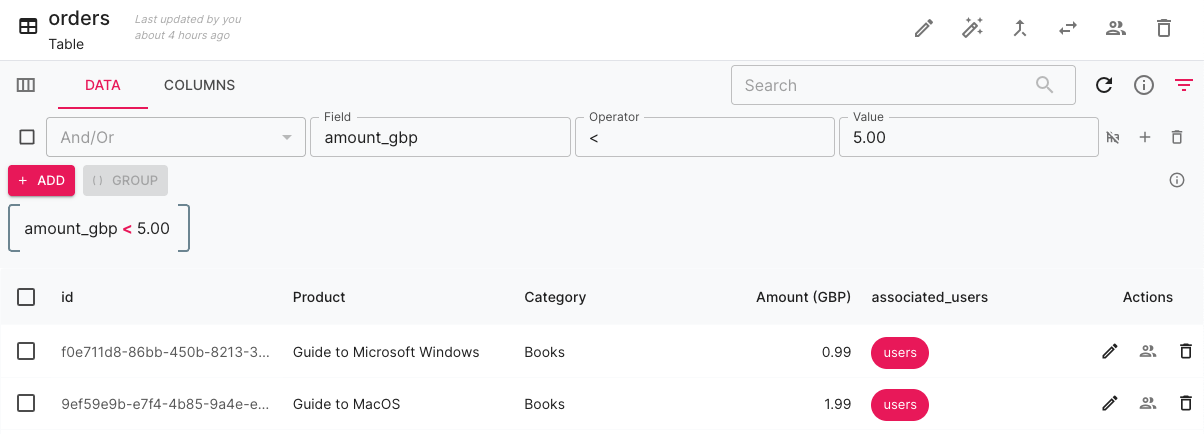
Different types of columns in your Table / View can use different operators. For example, if you are filtering on a Number column, then you can use:
- = - Is equal to
- != / <> - Is not equal to
- < - Is less than
- > - Is greater than
- <= - Is less than or equal to
- >= - Is greater than or equal to
- IN - Is in the following list of values (comma separated)
- NOT IN - Is not in the following list of values (comma separated)
If you are filtering on a String column, then the >, <, >= and <= operators do not make sense, as how can one piece of text be less than another piece of text? However, you can use the following other operators on String types:
- LIKE - Allows you to search for part of some text, using a
%character to denote where non search text could be - REGEXP - Allows you to use Regular expression to search for a pattern of characters in your text
Defining a Condition
Let's take a look at some examples of querying on common column types.
Number Columns
Filtering a Number field is straightforward, you can find rows where a number is the same, not the same, greater than or less than a number.
In the below video clip we can see that we can apply a query to a number column, including specifying the decimal places.
String Columns
There are fewer filtering options for strings as you cannot use the comparison operators (e.g. Greater than, less than) but you can use the LIKE operator to come up with wildcard searches, so if you want to search for a word that starts with, contains or ends with, you can do so!
If I wanted to search for any "Category" beginning with "Bo" then my query value would be Bo% and it will match on anything that starts with "Bo"!
Maybe you need to return data for a certain list of categories? Well, in that case you can use the IN operator and define a comma separated list of values for it to filter on.
Boolean Columns
When querying Boolean columns you really only have two options, either = or !=. The Query Interface is also context aware so will give you a checkbox to define your value, this is to avoid confusion as there are many ways of representing true or false such as 1 or 0 or "True" and "False".
Table Relationship Columns
You can also query data that is related to your current table! In our example, that means we can query the Users table to filter our Orders table.
The same rules apply for filtering on table relationships as other column types.
Combining Conditions
Queries are at their most powerful when you can combine them to really whittle down your search, this allows you to do things like return data where the amount is greater than £5 and the category is "Books". In our example from earlier this would return the following:
| Id | Product | Category | Amount (GBP) | Associated User |
|---|---|---|---|---|
| 546 | Guide to the Internet | Books | 74.99 | 2 |
| 547 | How to build your first website | Books | 24.99 | 2 |
| 322 | How to build an Operating System | Books | 5.99 | 3 |
AND
When you combine conditions using the AND conjunction operator, it will show you all data where both conditions are true.
In the below video, we are combining the condition that the amount must be greater than 5.00 and the category is "Books".
OR
When you combine conditions using the OR conjunction operator, it will show you all data where either condition 1 or condition 2 are true. In the below video we are finding orders which are either more than £5.00 or in the "Books" category.
Groups
We've now seen that we can combine filters by returning results where all conditions are true or where either condition is true. What if you want to return the data where the category was either "Books" or "Electronics" and the price was over £5.00?
This is where Grouping comes in. Grouping allows you to bundle conditions together so that they are evaluated as a group and then combined with conditions outside that group. For example, if we think of brackets as the things that define a group, our query might look something like:
Where (Category = "Books" or Category = "Electronics) and Amount > 5
Let's imagine another example where we have a table containing lots of Work Items for a team of Developers to work from:
| Id | Title | Type | Status | Assigned To |
|---|---|---|---|---|
| 10 | Logout button does not redirect to Login page | In Progress | 74.99 | 1 |
| 11 | Add Greeting message after login | Feature | To Do | 1 |
| 12 | Home page flickers after new login | Bug | In Progress | 2 |
| 13 | Improve error message on login page | Feature | To Do | 2 |
| 14 | Forgot password flow doesn't send email | Bug | To Do | 2 |
| 15 | Typo in logout button tooltip | Bug | In Progress | 3 |
| 16 | Build registration page | Feature | To Do | 3 |
As a manager, I want to see what Bug tickets are "To Do" or "In Progress" with 2 of my team members. I may need to construct a query such as:
Where Type = "Bug" and (Status = "In Progress" or Status = "To Do") and (Assigned To = "1" or Assigned To = "2").
The video below shows how we use a group in a query.
Ordering your conditions
It turns out the order you put your conditions in does matter for performance. You should always try and put your most impactful condition first and your least impactful condition last. Imagine you have a Users table which contains the details of 100,000's of users and you need to find all of the deactivated users which were created before 1st January 2025. You know that there are going to be far fewer deactivated users than there are going to be users which were created before 1st January 2025. Therefore, your query should be:
Where Deactivated = true and Created < "2025-01-01T00:00:00Z".
By doing the query in this order, you filter out the majority of results with your first condition and then you have to do the date comparison over far fewer results, leading to a more performant and snappy query!