
Docs · Projects
Activities
Activities are the most fundamental component of your Automation projects. They form the reusable blocks with which you can build bigger and more complex automation by assembling them into Workflow.
It is best practice to keep Activities focused on a specific aspect of the process you are automating, and building up complexity through combining many Activities in a Workflows.
You can create activities assigned to the Stateless or a GUI Bot, the Bot that is associated is the one that will run the Activity.
If you have no Bots assigned to your user then you cannot create an Activity as you have no resources to run the activity on.
Error handling
When any action runs, it outputs a chip called actionStatus, which indicates the outcome of the action. This chip can be used in conditions (like If Then) to drive automation logic based on the action's success or failure.
The actionStatus chip can have one of the following values:
Success: The action completed successfully.Failed: The action failed to complete and Fail on Error is checked, meaning execution stops.ContinuedWithErrors: The action failed to complete, but Fail on Error is unchecked, meaning execution continues.SuccessWithTimeout: The action timed out but Error on Timeout is unchecked, meaning execution continues.Cancelled: The action was cancelled by the user or in the action code.
An activity will stop executing if an action enters the Failed state and is not handled by a parent action.
To prevent the activity execution stopping, a user is able to use a combination of Fail on Error and Error on Timeout flags in the actions, in addition to the actionStatus datachip, to handle situations in a case by case basis. By using this approach, a user is able to implement corrective logic, in conjunction with the value of the actionStatus datachip, or gracefully clean down the activity before finishing execution.
For example, consider an API Caller action that retrieves data from a third-party service. If the service is temporarily unavailable, you may want to retry the request several times before erroring.
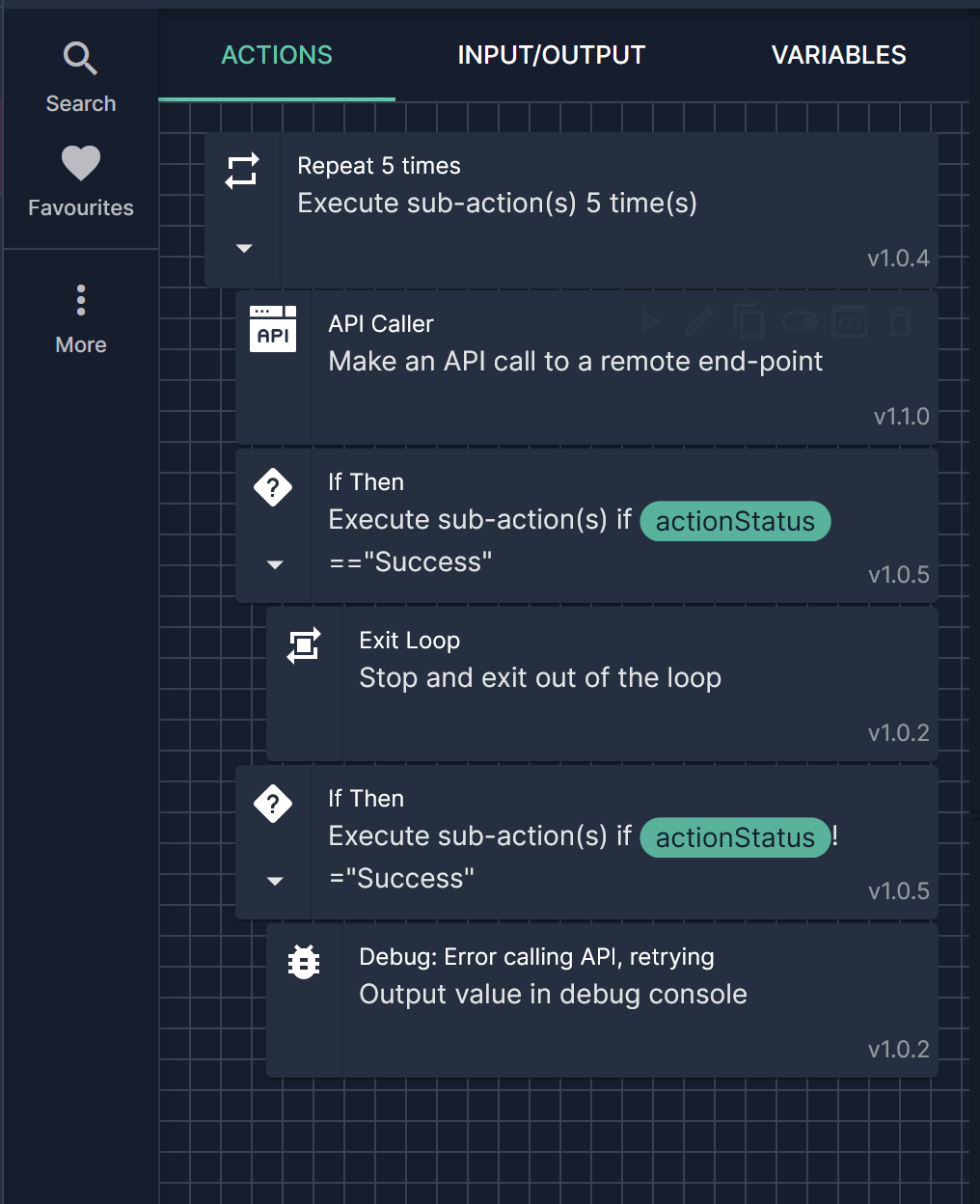
The below example illustrates how actionStatus could be used in this scenario to retry an API Caller action up to 5 times until it succeeds, with a Debug action logging that the action was retried, each time it fails.
The following Action properties can be set to control how errors are handled:
Fail on Error:
All actions include a checkbox labelled Fail on error?. If checked, it marks the action as Failed when an error occurs during its execution, indicating that the activity should not continue. By default, this option is checked for all actions.
Timeout
Certain actions, such as those in the Vision, OCR, or Flow Control categories, feature a Timeout property. This property, measured in milliseconds, specifies how long the action can run before it stops itself. Notably, a timeout can be set to -1, indicating that the action should disregard the timeout entirely.
Error on Timeout
Actions that have the Timeout property also include an Error on Timeout setting. This setting determines whether a timeout should be treated as an error.
There are instances where a user may not determine a timeout is an error.
For example, when using the Image Search action to look for a modal or warning that is known to appear intermittently, a timeout may be the desired outcome.