
Docs · Administration
Bots
A Bot represents a digital worker that will perform the activities that you have set up in your automation projects. Bots can interpret the actions that have been placed in an activity and run through them in the order defined within the activity.
There are two different types of Bots:
- GUI - This represents a digital worker with access to a desktop environment, this is best used for desktop based automation where you need to automate a browser or application
- Stateless - This represents a headless worker which has no access to a desktop environment or file system. This is best used for automating and integrating with more modern systems with direct API access or database access.
These two types of Bots are designed for very different types of automation and so there are some key differences to be aware of between the two:
- GUI Bots can only run one activity at a time, Stateless Bots can run many activities at once
- GUI Bots have access to the file system of the machine they are deployed on, Stateless Bots have no awareness of a file system
- GUI Bots broadcast their screen to the Toca platform so you can see what is happening in real time, Stateless bots have no screen or display
- GUI Bots can run Stateless actions but Stateless Bots cannot run GUI actions, examples of this might include "Image Click" which can only be run on GUI Bots
You can deploy both types of Bot on either Windows or Linux, Linux (Ubuntu 20.04) is what is typically recommended as it has less hardware requirements and generally performs better than Bots deployed on Windows. However, where Windows is required (e.g. automating Windows only desktop applications) then Windows Server and Windows 11 are fully supported. The Linux bots are deployed as docker containers which makes them easily deployable, lightweight and scalable. Windows bots are installed via an installer which can be downloaded directly from the Toca platform.
For most tasks we usually suggest the following specifications for the Bots:
| Specification | Linux Recommendation | Windows Recommendation |
|---|---|---|
| CPU | 2 core CPU | 4 core CPU |
| RAM | 4GB RAM | 8GB RAM |
| Disk | 10GB upwards | 30GB upwards |
The main reason for the discrepancies above are that Windows requires more resource to run than Linux.
The Bots can be deployed completely separately to the main platform so can be deployed on-premise, in the cloud or even on your own PC. They communicate outbound to the core platform and once they have established a connection the Bots and Core platform can communicate back-and-forth freely.
Workflow Behaviour
GUI Bots
As only one activity can be run on a GUI Bot at a time, when a Workflow that requires GUI Bots starts it will automatically lock all GUI Bots that are required in the Workflow. This ensures that when each activity in the workflow is executed, the Bot it is assigned to work on is ready and available. This prevents other things being run on the Bot and minimises the chances of the Bot not being in the expected state when an activity starts. Once the Workflow has concluded, all of the Bots that were locked will be unlocked and can be used by other Workflows.
If a Bot is already in use and locked when your Workflow starts then it will be in a "Queued" state until the Bot is unlocked and available for use.
If your Workflow is queuing and you're not sure why then you can view what the Bot is currently working on by viewing the Executions tab on the Admin -> Bots page.
Stateless Bots
When a Workflow is run and it comes to an activity that is assigned to a Stateless Bot, it will submit the activity to whichever Stateless Bot is currently under the least amount of load. This load balancing mechanism will typically ensure that your Workflows are processed by the most eligible machine at the time.
Stateless Bots execute their activities in a sandbox environment and so can run multiple activities concurrently, this leverages multithreading and asynchronous programming techniques behind the scenes to achieve this. The limit on how many activities a Stateless Bot can run at once will come down to how intense the activities are in terms of CPU processing resource required. If your activity is very bound by input/output (I/O) such as making network requests or writing to disk then it can run many of these activities at once as the Bot is able to get on with other activities whilst it is waiting for the network request to return or for the OS to report it has completed writing to disk. However, if your Stateless activities are doing lots of computationally intensive task such as Data Processing or parsing JSON then it will be able to run fewer things at the same time.
If the Stateless Bots are under intense load then you may notice that your jobs are processed a bit slower than usual but you should not experience failures.
If a Workflow only uses Activities which are assigned to Stateless Bots then there is no locking mechanism involved and your Workflows should run through immediately
Bot Status
Each Bot has a status that is used to determine the health of the Bot.
| Status | Colour | Description |
|---|---|---|
| Online | Green | The Bot is online and healthy and is able to run activities |
| Unknown | Amber | The Bot is reporting as online but is unable to run activities due to an issue such as unable to load an Action Build |
| Offline | Red | The Bot cannot communicate with the main platform and cannot run activities |
If a Bot status is showing as
Offlinethen check that the machine the Bot is installed on is running, then check that the Bot software is running, finally check the configuration is correct.
Assigning Users to Bots
Before a user can use a GUI bot, the Bot must be assigned to them via the Admin -> Bots screen. This ensures that only the appropriate users can access the GUI Bot as it might have secure data being stored on it so you only wish to assign it to the relevant users.
Stateless Bots do not need assigning, as all users will have access to all Stateless Bots on the platform.
Administration
The Bots page in Admin provides controls to ensure consistent versions and configurations for each bot service across the platform.
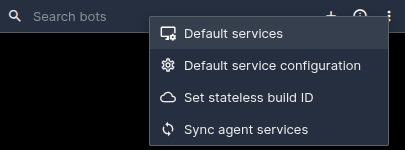
Default Services
This modal allows a user to specify a consistent version for each of the bot services each bot should use. The version specified can then be synchronised to all online bots rather than upgrading each bot one-by-one.
Example:
A hotpatch is released for the Stateless service and needs to be used on the platform.
- Pull the new version via Packs.
- Once installed, navigate to
Admin->Bots. - Select Default Services from the options available.
- Specify the newly installed version for
Stateless. - Synchronise the version across all online bots.
Default Service Configuration
This modal allows users to modify the default configuration used by each service. If the hostname of the core or ports change these can be modified in here and utilised the next time that service is installed/upgraded.
The specific service must be reinstalled/upgraded for these changes to take effect. Restarting the service will not pull this new configuration.
Tracing
Tracing can be added to a service by including the following in the service configuration:
"traceConfig": {
    "enabled": true,
    "otlpExporterEndpoint": "https://collector.<host>",
    "probability": 1
}
Logging
Seq logging can be added to a service by including the following in the service configuration:
"logSettings": {
    ...
    "seqInstance": "https://<seq-instance>"
}
Set Stateless Build ID
This option allows you to easily set a specific action build for all Stateless services on your system.
In most cases this should not be necessary, but it is useful when you need to roll back to a previous working Action Build.
Sync Agent Services
A quick option to synchronise all services on your bots. The versions that will be used for the synchronisation are those specified in the Default Service Configuration.