
Docs · Guide
Data Types
What are Types?
Every value that you come across in Toca has three properties:
- The key - This is the identifier that is used to "name" the value
- The type - This is the classifier that tells Toca how this value is intended to be used
- The value - This is the actual value
If you think of every value as a box, a box needs a label (the key) so that you can easily identify what is in the box, we also have a classifier that tells us what sort of thing to expect in the box (the type) and lastly you have the thing in the box (the value).
Whilst the key is useful for identifying the value, the type is of equal importance as it tells us how we can use the value.
For example, if the value is a Number we know we can use that for mathematical operations. If the value is a File we know that we can perform file system operations on the value.
Types also help us to make our software safer and more robust as it allows us to make guarantees about our programme such as "I can only add a Number to a Number" or "I can only iterate over values in a List".
This is a good way of preventing errors which could occur whilst our Application is running such as what might happen if you attempted to make a Table uppercase instead of some text!
Within Toca there are two categories of types:
- Base Types - Types that hold a single value
- Collection Types - Types that store multiple values
Base Types
String
A String type represents text content and is probably the most common type that you'll deal with in Toca. It may seem odd to refer to text as a String but this is a term that is used very commonly in computing, it is supposedly due to text being referred to as a "string of characters" where a character represents a letter.
A value of type String in Toca is a variable-length piece of text that can range from a single letter all the way to thousands of words and it can contain any valid UTF-8 characters. They also support escape characters to enable formatting such as:
\n- newline character\t- tab character\r- carriage return character
There is no real upper limit on how many letters can be stored within a single String type but once you start getting to the 100,000's of characters, you might notice some performance issues when trying to view the value.
Casting
Strings are fairly unique in that almost all other types can be converted to a String as you may want to view a number as text or convert a List to a comma delimited list of text.
Operators
When you need to compare Strings then they are only able to be compared in two ways, they are either equal to each other or not.
| Operator | Description |
|---|---|
LHS == RHS | True when Left Hand Side (LHS) is the same as the Right Hand Side (RHS) |
LHS != RHS | True when LHS is NOT the same as RHS |
Number
The Number type can represent any sort of number, whether it is an integer, a negative number or decimal number. Behind the scenes, the value is always stored as a decimal number, even if that means specifying an additional .0 on the value. By storing all number values consistently behind the scenes it means they can all be treated in the exact same way and you don't have to worry about conversion between different number types like you might have to do when coding.
A Number type allows for the following range:
- Max: 1.79x10³⁰⁸
- Min: -1.79x10³⁰⁸
It has a precision of approximately 15-17 digits.
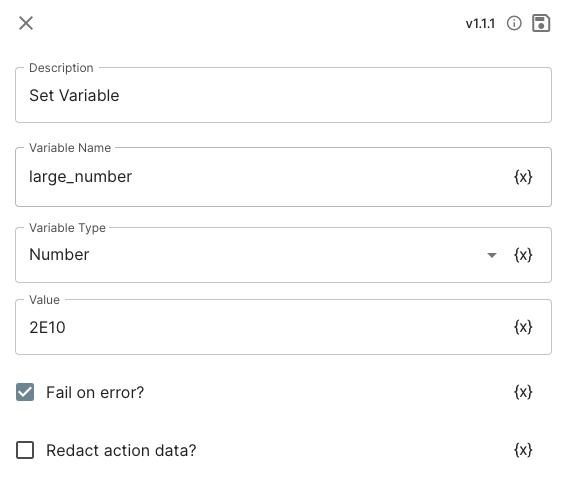
A Number type can contain only digits, it does not support constants such as π, e or τ. In some places, it does support scientific E notation so for example you can set a Number variable of 2E10 and this will result in 20,000,000,000.
Casting
It is worth noting that if you convert a value of type Number to a String, the behaviour will change slightly depending on if the underlying value is a whole number (integer) or a decimal. If the underlying value is a valid integer then it will not include any decimal points, if the value is a valid decimal then it will keep all relevant significant figures.
For example:
4.5 will be converted to "4.5"
4.0 will be converted to "4"
This is because when treating a whole number as text, it is seldom desired to include ".0".
Operators
When using Number values, you are typically using them to obtain the result of a mathematical equation or using them in some sort of comparison such as "Filter data where {number} is greater than 100". When you are performing these comparisons, it is good to know what operators are available to you.
| Operator | Description |
|---|---|
LHS == RHS | True when Left Hand Side (LHS) is the same as the Right Hand Side (RHS) |
LHS != RHS | True when LHS is NOT the same as RHS |
LHS > RHS | True when LHS is greater than RHS |
LHS >= RHS | True when LHS is greater than or equal to RHS |
LHS < RHS | True when LHS is less than RHS |
LHS <= RHS | True when LHS is less than or equal to RHS |
Boolean
A Boolean type represents only two possible values: true and false. This type is most useful for representing states which can only be either true or false, on or off, enabled or disabled.
Boolean values are usually used as a way to configure a conditional flow of logic. For example: "If {boolean} is true, then perform actions."
Operators
| Operator | Description |
|---|---|
LHS == RHS | True when Left Hand Side (LHS) is the same as the Right Hand Side (RHS) |
LHS != RHS | True when LHS is NOT the same as RHS |
!LHS | NOT LHS, this returns the opposite value to LHS, so if LHS is true this would return false |
Date Time
A DateTime type represents an instant in time, typically expressed as a date and a time of day. Dates and time are difficult as there are many factors to take into account in how a date and time is measured and formatted, such as what calendar is the date represented by and what format should it be displayed in? Month first? Day first? Year first? The Datetime type aims at being an agnostic way of storing a static point in time which can then be formatted down to the users preference in the future.
In general, dates and time are stored throughout the system in the format of yyyy-MM-ddTHH:mm:ssZ, this adheres to ISO 8601 formatting.
So this means that 9AM on the 5th September 2018 would be stored as:
2018-09-05T09:00:00Z
When you wish to format a date into a particular format there are automation actions and app components which will allow you to do this so you can represent your date in the exact way you want. You can take a look at:
- Format / Convert Date
- ISO Date Parser
Casting
DateTime values can only be cast to text via explicit actions such as Format / Convert Date as otherwise Toca doesn't know what format to store the date and time in.
JSON
The JSON types are for storing JSON (JavaScript Object Notation) data. This is similar to storing data as a String but it includes JSON validation as well as maintaining formatting. One of the most useful features of a JSON type is that you can use JSONPath to query and select values within the JSON.
{
  "name": "Toca",
  "website": "https://toca.io",
  "age": 6,
  "industry": "Technology",
  "UK-based": true,
  "available_jobs": [
    {
      "title": "Application Builder",
      "salary": "Many 🍭's"
      "type": "Temporary"
    }
  ]
}
If I wanted to get the industry value out of the above example, I can query it with JSONPath using $.industry, if I wanted the title of the first available job I can use $.available_jobs[0].title.
Casting
You can convert between JSON and a String, the two types are seen as interchangeable even if it results in invalid JSON.
You can also convert from a individual JSON property to a String, Number or Boolean if the values are valid.
Password
Password represents a text value that has been encrypted and will only be decrypted at the point of use. A Password type value can only be used in certain places as anywhere that uses it must understand how to decrypt the value. It is typically used in conjunction with the Paste Password action in scenarios where you need to securely paste a password in some desktop automation.
The Password type will not log it's true value anywhere, obsficating it where possible or logging only the encrypted value. It is best to use this type for storing and using passwords, security keys or API tokens securely.
File
A File type can be used to represent any sort of File being used throughout the platform. This is useful if you design an App that has a File Upload form input and you want to download that File onto a Bot to perform some processing on the file or you wish to upload a file to a row in a Table.
The File type will store information about the file such as the name, extension, size and the MIME type.
Image
An Image type allows you to store any type of image (PNG, JPEG, BMP, etc.) in an agnostic way that is understood by the whole platform. These Image values can then be used in automation actions such as "Image Search" or they can be stored in a Datastore so that you can reference them from an App to display a logo or background image.
Behind the scenes, these values are stored as a Data URI with the content being a Base64 representation of the image. Below shows an example of how an Image might be stored behind the scenes:
data:image/png;base64,iVBORw0KGgoAAAANSUhEUgAAAAUAAAAFCAYAAACNbyblAAAAHElEQVQI12P4//8/w38GIAXDIBKE0DHxgljNBAAO9TXL0Y4OHwAAAABJRU5ErkJggg==Casting
For really advanced use cases, you can actually get an image as it's raw Data URI. To do this you simply need to use a Set Variable action in an Automation project to cast an Image to it's text equivalent. This is only recommended if you understand what you are doing as the raw Data URI is no longer usable as an Image type.
Identity
An Identity is a value that represents a digital account that is linked to a different identity provider, this could be a Microsoft account, GitHub account or Google account for example.
An Identity allows you to link any Oauth2.0 compatible account with Toca so that you can use automation actions such as Outlook Send Email or Upload to Google Drive on behalf of a user. These identities store both an Authorization token and a Refresh token behind the scenes so that they can always be authenticated without having to ask you to log back in to authorize these linked accounts.
An Identity can only be used in certain places such as Microsoft and Google actions, this is because an Identity is a type that is designed for very specific use cases so it's usage is limited.
Collections
List
A List stores a collection of other values, you can have 0 or more values inside a List. A List is ordered, so that means a List will maintain it's order of items unless explicitly changed. A List can also contain duplicate values, you can repeat duplicate values as many times as you need to in a List. Lastly, a List can contain items which are made up of many different types.
For example, you could have a List that looks similar to this:
list_1 = ["james", 28, false, "Toca.io"]
list_2 = ["apple","banana", "cherry", "apple", "cherry"]
A List is a very useful way of tracking a collection of values that need to stay together.
Individual items in a List can be accessed by their position, this is also known as their "index". A List can also be iterated over to get each item within the List in turn.
Casting
You cannot cast a List to any other type without using actions to join all items of a list into a single String type, by joining the items with a delimiter.
You can cast other types such as a table row or a table column to a List.
Coordinates
A Coordinates type is composed of two Numbers that represent an X and Y position. The Coordinates type is often used in conjunction with Desktop automation actions such as Mouse Click or Image Click. It is used to define a single point on the screen that is being automated where the top left hand corner represents (0, 0) and the bottom right hand corner represents (1920, 1080) on a full HD screen.
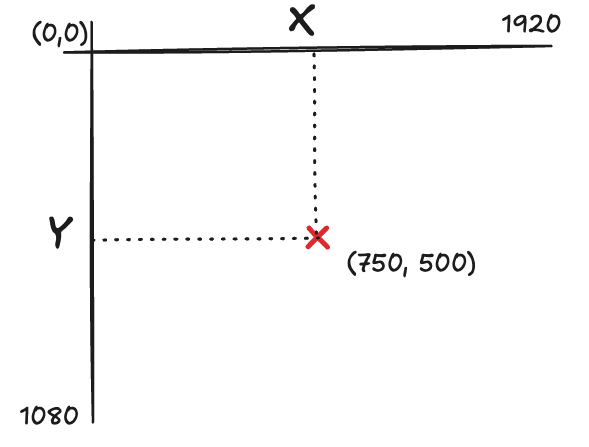
Below is an example of how a Coordinate value is represented behind the scenes:
{
  X: 50,
  Y: 125
}
You can access the individual X and Y components to extract out the individual Numbers that make up the Coordinates.
Bounding Box
A Bounding Box contains four Numbers which are used to represent the X, Y, Width and Height of a rectangle, with the X and Y being the top left hand corner of the Box. Similar to the Coordinates type, this is often used within Desktop automation to represent an area of the screen.
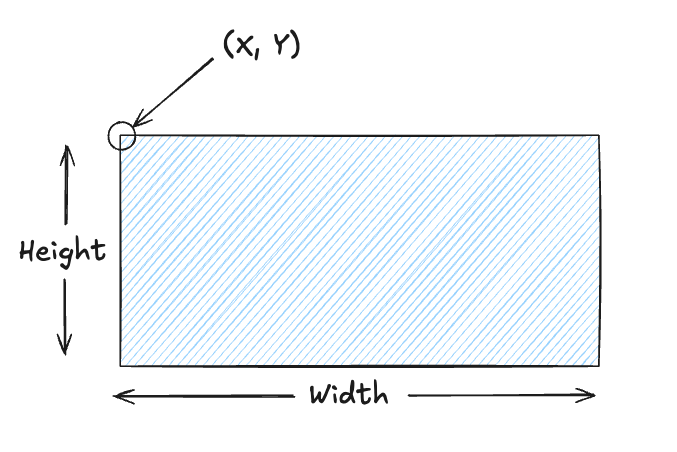
Below is an example of how a Bounding Box value is represented behind the scenes:
{
  X: 50,
  Y: 125,
  Width: 100,
  Height: 200
}
You can access the individual X, Y, Width and Height components if you need to extract out the individual Numbers.
Grid
A Grid is used to represent a cluster of rectangles on the screen which are placed together to form a Grid. This is only used in the Grid actions in the Automation part of the platform, it allows you to define a grid of bounding boxes on the screen which can then be iterated over. When you iterate over a Grid using an action like Image Grid or OCR Grid, it will iterate over it from left to right, top to bottom, so it will start at the top left box and move to the top right box and then move down to the next row and so on.
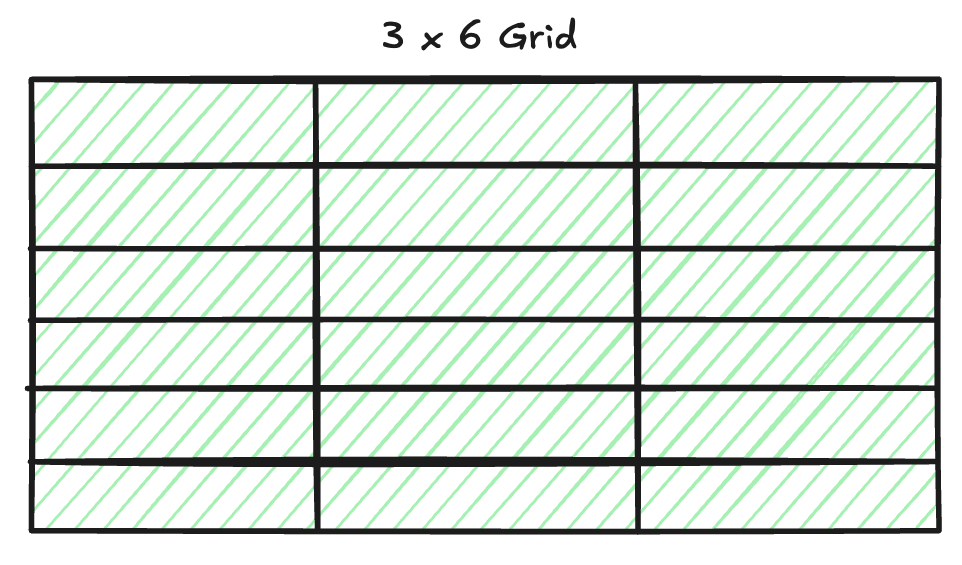
Due to a Grid's complexity, you cannot get the individual boxes within the Grid.
Table
Null
Casting and Converting
- Rules
- Matrix of Types vs Types
Casting Matrix
| Type | String | Number | Boolean | Date Time | JSON |
|---|---|---|---|---|---|
| String | - | ✅ | ✅ | ✅ | |
| Number | ✅ | - | |||
| Boolean | ✅ | - | |||
| DateTime | ✅ | - | |||
| Password | - | ||||
| File | - | ||||
| Image | - | ||||
| Identity | - | ||||
| List | ✅ | - | |||
| Coordinates | - | ||||
| Bounding Box | - | ||||
| Grid | - | ||||
| Table | - |