
Docs · Administration
File Manager
The File Manager enables administrators to browse files in the system, allowing for the identification and deletion of files that are no longer required.
Any manual file deletions via this screen can cause data loss and operational failure. Caution should be taken to ensure the files to be deleted are safe to be deleted.
📁 Navigation
The directory tree structure allows you to to explore buckets and subdirectories within the object store. Select a directory to view the files within.
📂 Folder Views
1. File Browser
Displays the files and folders within the selected bucket. Users can:
- View file names, sizes, and modification dates.
- Perform operations like viewing, downloading, or deleting files (with restrictions).
2. Charts
Visualizes storage usage by recursively searching for and displaying the top 10 largest files. Useful for identifying large storage consumers quickly.
3. Delete Audit
A log of deleted items including:
- File name
- User who performed the deletion
- Timestamp
- Reason
🛡️ Deletion Safety
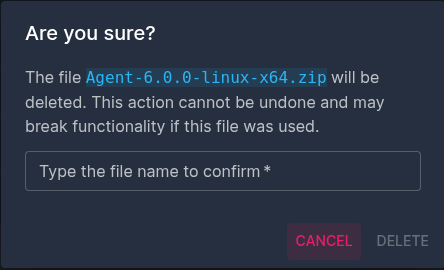
Any delete action in the File Browser is gated behind a confirmation modal. The modal requires:
- Manual input of the exact file name
- This extra step minimizes unintentional data loss.