
Docs · Guide
Testing Automation
When developing or making updates to automations, it's important to make sure that the automation does what we expect it to do, and that our updates aren't breaking things that were working before. For this purpose, the activity designer provides many useful features to make sure that our automations remain as correct as we expect them to be.
Draft and Published states
Activities and workflows have two main states: Draft and Published.
Activities
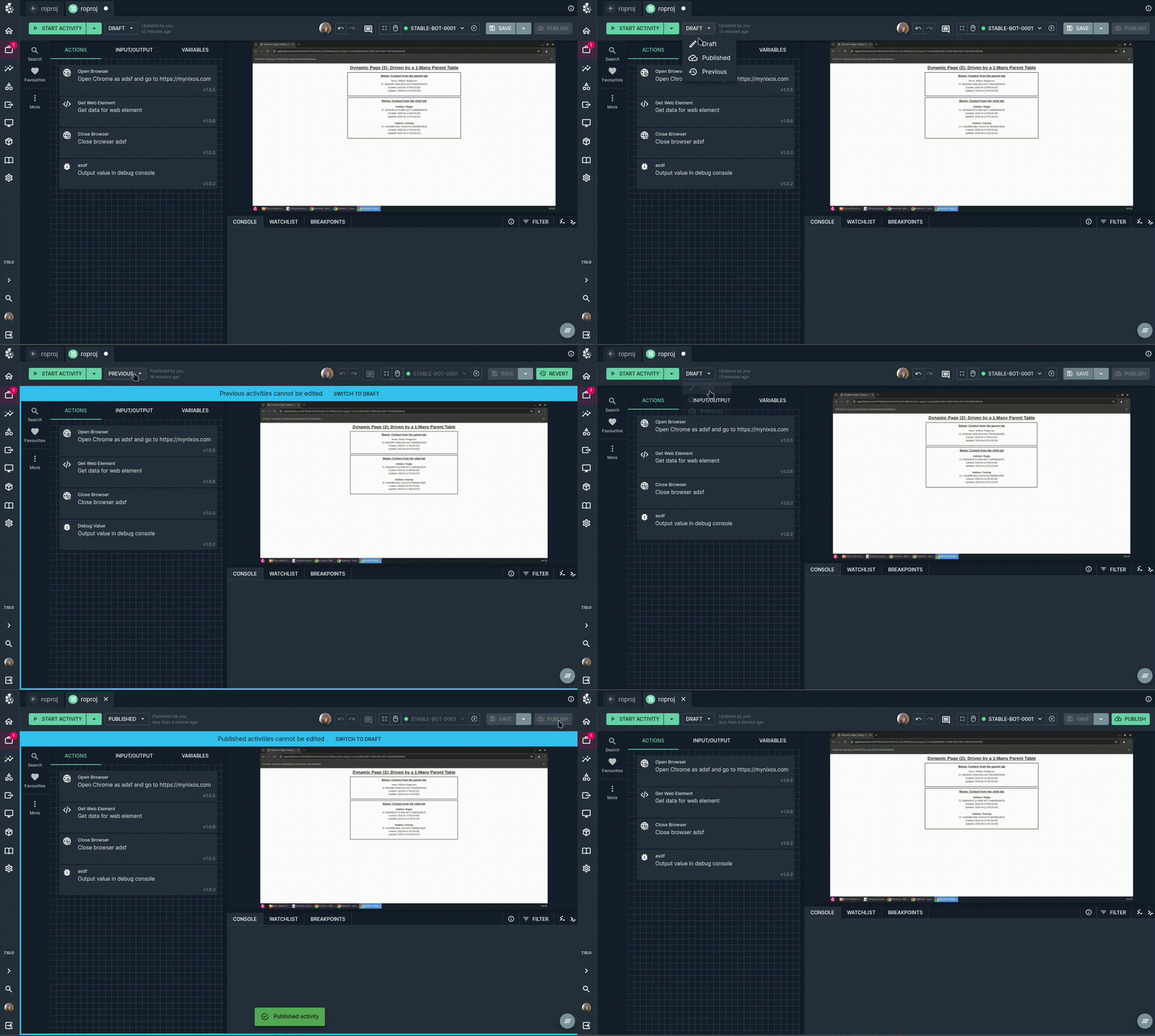
While editing an activity, when we hit the save button we are making a change to the draft state. This state is ideal for making changes to an activity without breaking a workflow which is in active use, i.e. in a Published state.
When we are satisfied with the changes we have made to the activity, we can press the Publish button to push our changes to the published state. If we are unsatisfied with a new published version (perhaps we have published a draft version by mistake) we can also revert to the previous published version.
Workflows
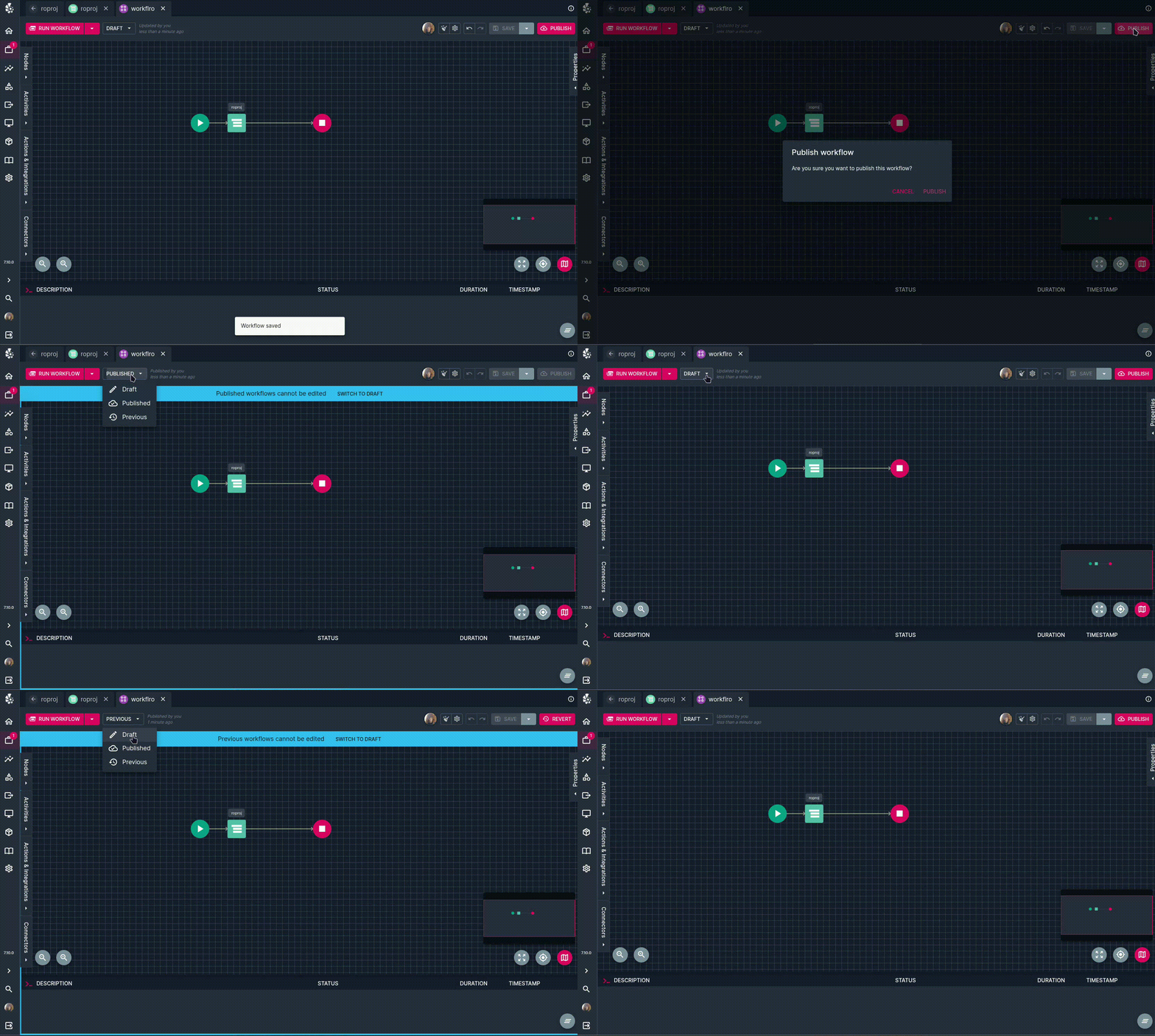
Similar to activities, workflows also have draft and published states. Note that published versions of activities are also the versions of those activities which are used in published workflows. Draft workflows can use either draft or published activities, which can be selected in the sidebar after clicking on the activity node in the workflow designer.
Draft states' connector routes/endpoints will be suffixed with /draft.
Testing activity inputs
When we have an activity that takes inputs, it can be useful to feed the activity some dummy inputs to test that it does what we expect. Here we will discuss two common testing methods.
Debug group
As activity inputs are used as variables within an activity, we can manually set them with a Set Variable action, and toggle this action on/off depending on whether we are testing. If we have multiple input variables to test, we can create multiple Set Variable actions and put them into a Group, which we can then enable when we are testing.
While quick and simple to implement, this carries the disadvantage that the developer a developer may forget to disable the debug group after testing, potentially breaking dependent workflows if the activity is published in this test state.
Test boolean
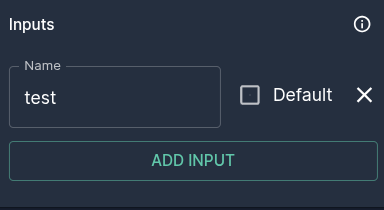
Another way to implement tests is to add a boolean input to all activities we want to test, and we can call it test or similar. We can set this input to default to false. Then, in our activity, we create an If Then blocks whether test is set to true.
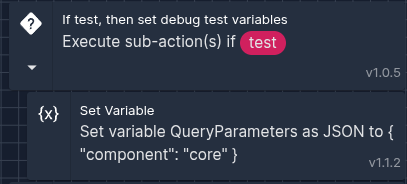
This has the benefit that it is harder for the developer to accidentally use the test version of the activity when this is undesired.
Testing workflow inputs
In production, a workflow may run with inputs from a listener or a connector. However, we may want to test a workflow without calling the listener or connector. This can be done in the workflow designer with the Run with inputs button.
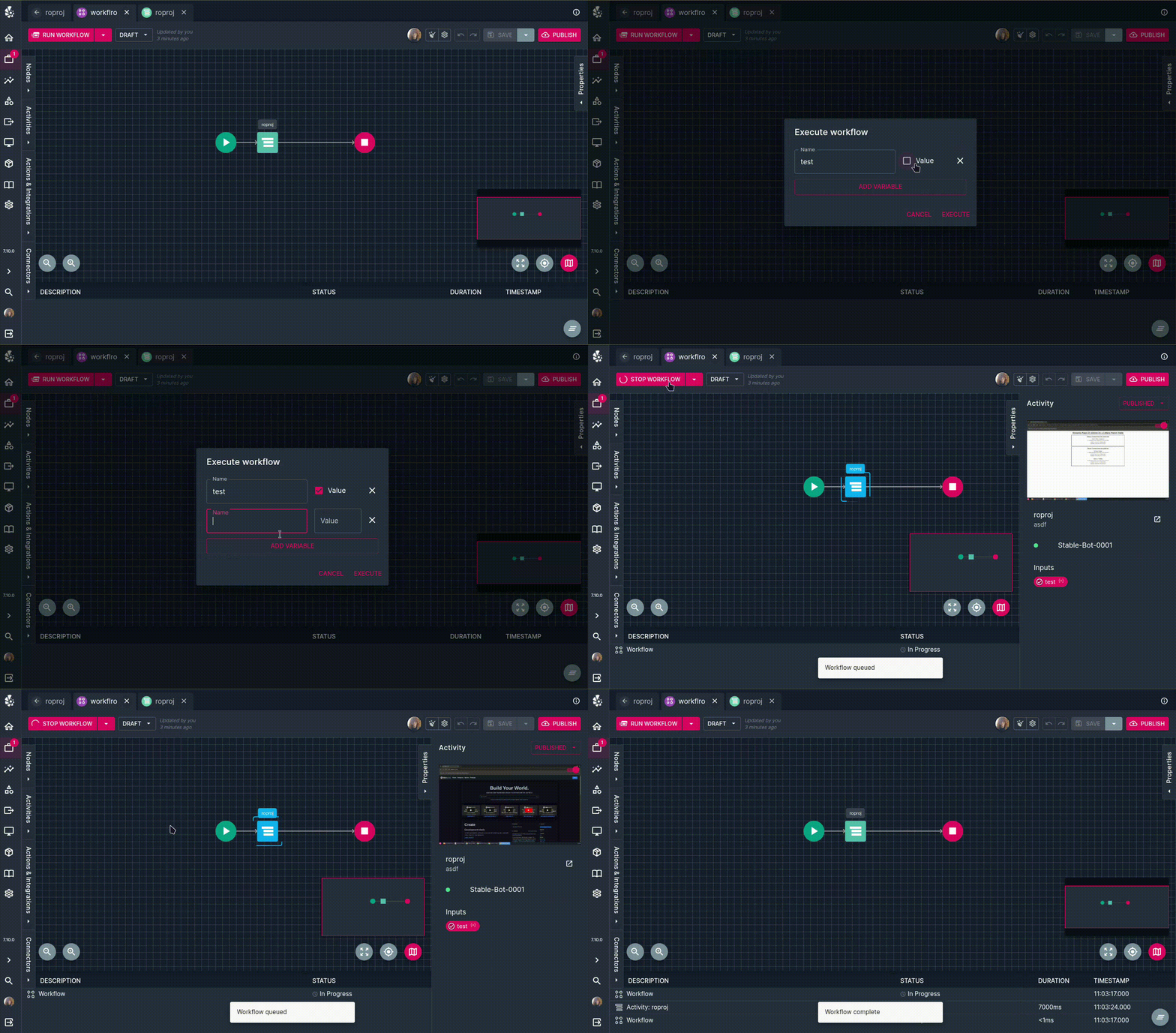 This can be very useful in combination with the test input variable for activities that we discussed, as we can run all activities in the workflow which implement this test strategy by running the workflow with the
test variable set to true.